General MVC Details
What is the Midwest Veterinary Conference?
The Midwest Veterinary Conference (MVC), hosted by the Ohio Veterinary Medical Association (OVMA), is a growing, regional veterinary conference packed with educational, networking and social opportunities for every member of the veterinary team. Bringing together highly regarded experts from around the world and hundreds of industry vendors, the MVC is a national-caliber conference—at a Midwest price. Learn more »
Who and how many people attend the MVC?
Thousands of veterinarians, technicians, hospital staff, shelter personnel, students, and other animal care professionals in all fields of veterinary medicine attend the MVC. More details »
Where does the MVC take place?
The live, in-person portion of the MVC is held at the Greater Columbus Convention Center, Hall A (400 N. High St., Columbus, Ohio 43215 – map) and the Hyatt Regency Hotel (350 N. High St., Columbus, Ohio 43215 – map).
What is the dress code?
Keep in mind that the MVC is not just an educational event, but a networking event as well! Therefore, we recommend business casual attire. You may wish to dress in layers, as meeting room temperatures can vary.
Are animals allowed?
Pets
We love them as much as you do, but Convention Center regulations and health department codes prohibit pets. In keeping with the law, only service animals are permitted. Please help us not disappoint your pet by making them have to go home early!
Service Animals
Please note, documentation is required for individuals bringing service animals. (See next question for details.)
Per the Americans with Disabilities Act and Ohio law, disabled individuals are permitted to bring assistance animals into most public places. These regulations include the following provisions:
- Disabled means blind, hearing-impaired, deaf, and/or mobility impaired
- Assistance animal means any animal that aids someone who has a physical or mental impairment which substantially limits one or more major life activities (e.g., walking, seeing, hearing)
- Assistance dogs may be brought into public places, provided that:
- The dog may not occupy a seat on public transportation
- The dog must be leashed
- Any dog in training to become an assistance animal should be covered by liability insurance
- You cannot be charged an additional fee for your service animal, but you can be held financially liable for any damages it causes.
- Public facilities are allowed to ask if your animal is a service animal and which tasks it is trained to perform. They cannot, however, ask detailed questions about your disability or animal.
- Public facilities are permitted ask you and your service animal to leave if it threatens the health or safety of other patrons.
- Keep in mind that neither federal nor Ohio law recognizes emotional support animals as “assistance animals,” which means that public facilities are not required to admit them. We strongly encourage you to contact the convention center and your hotel in advance to find out their policies on ESAs.
If you have questions, please contact the convention center and your hotel directly to find out their policies. For more information on the legal requirements, please see:
I have a service animal. What documentation is needed?
Proof of a service animal (also known as an assistance dog under Ohio law) would include one or more of the following:
- Evidence the animal was trained by a non-profit special agency to assist individuals with a disability including: sight impairment, hearing impairment, mobility impairment, medical condition or providing psychiatric assistance.
- A statement from a human health care professional that the individual benefits from the assistance of the service animal, and a statement from a veterinarian indicating the animal is of a suitable temperament in their opinion to provide assistance to the individual in areas of public gathering.
- Completion of a statement by the individual attesting that the animal is necessary because of a disability and what work or task has the animal been trained to perform.
Service/Assistance Animal Rules
- Must be kept on a leash or harness and under the control of the person at all times.
- Identification of the animal as a service/assistance animal by a vest or similar item upon the animal and identification on the animal by badge of the animal’s name, its owners name and cell phone.
- Waste bags must be on the owner’s possession and promptly used when necessary.
- Animal must be removed if it becomes aggressive and/or vocalizes extensively.
I will need special assistance to be able to attend the Conference. How do I make arrangements?
Attendees who need special assistance or services in accordance with the Americans with Disabilities Act are asked to notify the OVMA office at least two weeks prior to the Conference by providing a description of how we may accommodate you. Please provide your needs in the designated section of the online registration form or contact us directly.
What should I bring with me?
In addition to your standard travel items, we recommend you bring:
- your session notes, either in hard copy form* OR downloaded to your preferred device
- notebook, laptop or tablet for extra note-taking
- smartphone or tablet with MVC mobile app installed
*Note: The MVC does not have printing stations on site.
Will I receive a program on site, or should I bring my copy of the Preliminary Program?
A hard copy of the On-Site Program will be available at the self-serve attendee items station. You may also refer to the Mobile App, which contains a complete schedule with session descriptions.
Attendee Badges
What information will be shown on my badge?
Badges show attendee first name, full name, attendee type, company, and location*. There will also be a QR code, which is used in the Exhibit Hall for exhibitor scans.
*Keep in mind, the location is pulled from your PRIMARY address. If you choose your home address as primary, it may not correspond with your company’s location.
Your information will be printed on your badge EXACTLY as you provide it during registration (including capitalization), so please enter these details as you would like them to appear.
What information is encoded in the QR code? Can exhibitors obtain this information?
Your name, attendee type, company, primary mailing address, and phone number (if provided) are encoded in the bar code and may be scanned by exhibitors.
Please note, we DO NOT provide or sell email address to any third parties.
Can I check my badge before it’s printed? How can I make corrections?
Yes. When you check in on site, you will be able to preview your badge and make corrections prior to printing.
When will I receive my badge?
Badges will NOT be mailed in advance. All attendees should pick up their badges on site from the self-serve check-in station.
What if I don’t want exhibitors to receive my contact information?
If you do not wish to share these details with exhibitors, simply decline to have your badge scanned in the Exhibit Hall.
When do I need to wear my badge?
Badges are required for entry into all MVC sessions, labs, special events, and the Exhibit Hall.
Continuing Education
CE Credits
How many hours of continuing education can I obtain by attending the Conference?
Each hour of sessions and/or labs is worth one continuing education (CE) credit. The amount you can earn varies depending on your chosen registration options and your state’s licensing board.
In-Person MVC. The majority of attendees can earn a maximum of 18 hours by attending the live, in-person MVC (6 hours per day). There are additional workshops and seminars (such as the all-day RECOVER CPR lab) that offer extra hours to certain registration groups.
Virtual MVC. The amount you may earn by participating in the Virtual MVC varies by state. In Ohio, veterinarians can earn 18 of their 30 hours online, and technicians may earn 6 of their 10. If you are licensed outside of Ohio, please check with your state’s licensing board to determine how many hours of online CE you can use toward license renewal and whether presentations need to be viewed live rather than pre-recorded. For additional information, please see the Virtual MVC section below.
Are MVC sessions RACE approved?
The Midwest Veterinary Conference is a preapproved provider of CE by the Ohio Veterinary Medical Licensing Board, and nearly all other state veterinary boards accept the OVMLB’s approval for their own state CE approval. (Texas is the known exception.) As such, we do not go through the RACE process and therefore are not RACE accredited.
Are MVC sessions approved by any specialty organizations?
Any additional approvals will be posted on the CE Approvals page as they become available.
How do I sign up for sessions / build my CE schedule?
In a Browser
- Click here to access the event platform
- Click the Sign In button in the top right corner
- Log in using your email and the password you set up before registration
- After completing the check-in process, click the “Sessions” tab in the left sidebar
- Click on the session you wish to attend, then click the green bookmark icon next to the title to add it to your registration
- Repeat the process as needed to build your schedule
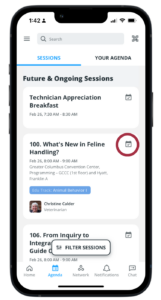
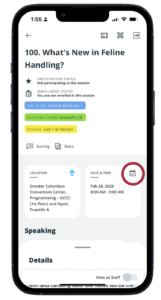
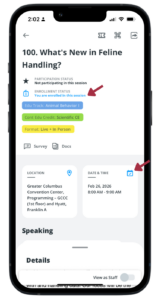
Note: Clicking the calendar icon does NOT register you for the session. This feature allows you to add the session to your device’s calendar as an event.
In the Mobile App
|
|
|
How do I get my CE certificate?
Option 1. Use the On-Site Program
Complete the certificate of attendance and record of CE in the on-site program to keep for your records. If your state requires the signature of the hosting organization, present the form to an OVMA staff person to sign.
Option 2. Use the MVC Mobile App / Online Platform
IMPORTANT: Make sure all sessions you attended have been marked “Participate” in the mobile app. (See “How can I track my CE credits in the app?” below.) Only sessions you have marked as participating in will be added to your certificate and transcript.
First, open the app or online platform and log in using the email linked to your registration. The steps are the same whether you are using the app or a web browser.
|
|
| |
|
|
|
|
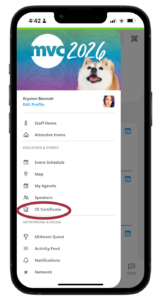
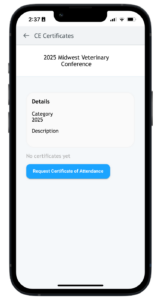
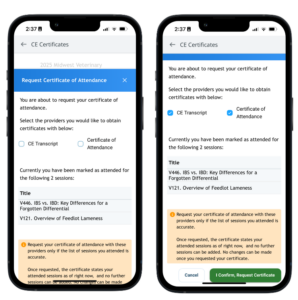
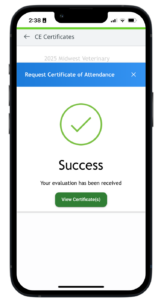
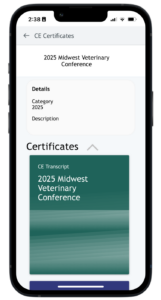
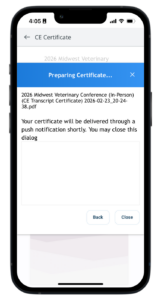
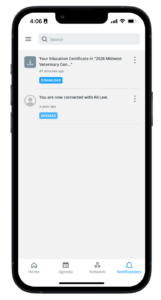
You can return to the CE Certificates page at any time to re-download your documents or, if changes have been made, re-generate them.
Records & Licensing
Does the MVC provide a record of the sessions I attend?
If you select sessions to attend after registration*, this information becomes part of your electronic record with the OVMA.
*Instructions on selecting sessions can be found in the registration section below.
Can I use the CE offered at the MVC to fulfill my CE requirements for license/registration renewal?
The Ohio Veterinary Medical Association is a pre-approved provider of continuing education by the Ohio Veterinary Medical Licensing Board. As such, Ohio veterinarians and technicians can count OVMA-hosted programs towards their Ohio CE requirement. While we can not verify the acceptance of OVMA programs by other state boards of veterinary medicine, the Midwest Veterinary Conference has historically been considered acceptable continuing education by other states. (Texas is the known exception.)
Some states* do require the licensee to complete and have signed the CE record form found in the On-Site Program; check with your state’s licensing board to find out what is required.
If your state requires a signature from the hosting organization, fill out the Certificate of Attendance form in the on-site program and bring it to the Attendee Assistance counter before you leave to have an OVMA staff person sign it. If you forgot to obtain this on site, please contact the OVMA.
*Ohio license renewal requirements do NOT require a signature.
How can I track my sessions?
Option 1: Use the On-Site Program: A Record of Continuing Education form will be available in the on-site program. It provides a place to record the date, title, speaker and the number of hours attended. Each hour of participation is worth 1 CE credit. Attendees are responsible for tracking the sessions they attend.
Option 2: Use the MVC Mobile App: When a session you are enrolled in begins, you will be able to check in. Doing so adds the session to your CE transcript and awards the CE credit to your certificate.
|
|
|
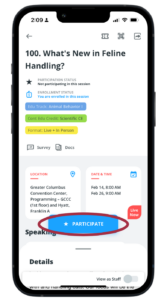
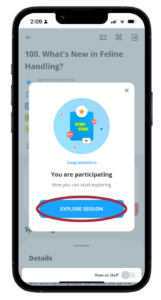
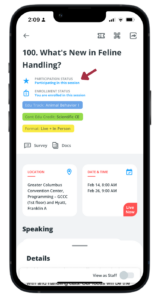
Notes:
- Please note, this can ONLY be done in the mobile app.
- You are not required to use the mobile app to track your CE credits. You will be awarded your credits even if you do not use the app, but you will have to manually track the sessions you attend.
How can I get a certificate of attendance?
Track your CE manually
A blank certificate of attendance and CE record is included in the on-site program. If you need a signature for license renewal, you can ask an OVMA staff member to sign it before you leave the MVC, or send us an email after the conference ends.
Track your CE using the MVC Mobile App or Online Platform
In the Mobile App
Before following the steps outlined below, make sure all sessions you attended have been marked “Participate.” (See “How can I track my sessions?” above.)
|
|
| |
|
|
|
|
In the Attendee Platform
Before following the steps outlined below, make sure all sessions you attended have been marked “Participate.” (See “How can I track my sessions?” above.) This can only be done in the mobile app. If you do not have the app, please contact OVMA with a list of sessions you attended, and we can update this manually on your behalf.
- Log in to your account.
- Click on the Events tile.
- Click on the event for which you would like to generate your certificate.
- Click on “CE Certificate” in the left sidebar.
- Click the “Request Certificate of Attendance” button.
- Select which certificates you would like to generate, then click the confirmation button.
- When the success message appears, click “View Certificate(s).”
- Click on each item, then click “Generate Certificate.”
- The document will automatically download to your computer.
Session Notes & Presentations
How can I access the session notes and speaker presentations?
- In the mobile app: Tap the Docs link under the session title. If there is not Docs link, the speaker has not provided any documents for that session.
- In the online attendee platform: Open a session. The documents, if any have been provided, will appear under the “Documents” section.
Please note: The MVC makes every effort to collect presentations and notes from speakers. However, be advised that not all speakers provide these documents.
The notes and/or presentation for a session I want to attend are not listed. How can I get a copy?
If a session does not include documents, it is likely because that speaker did not provide these materials—either because they do not wish to make them available or they missed the deadline to submit them for pre-MVC access. In the event we receive them at a later date, we will update the online conference proceedings. Refer to the Program Changes & Updates page to find out if/when additional materials are made available.
Will recordings be available for purchase?
No, the MVC does not audio record sessions for purchase.
Exhibit Hall
When is the Exhibit Hall open?
Exhibit Hall hours are as follows:
- Thursday: 10:30 a.m. to 6 p.m.
- Friday: 10:30 a.m. to 6:30 p.m.
- Saturday: 10:30 a.m. to 1:30 p.m.
What companies are exhibiting?
Please refer to the Exhibitor list for an up-to-date list of companies that have signed up to participate.
What personal information do exhibitors receive?
If you allow exhibitors to scan your badge, they will be able to see your name, company name, mailing address, individual type (veterinarian, technician, etc.), and email address. If you do not wish to share this information, simply decline to have your badge scanned.
Please note, the OVMA does not sell your email address to any third parties.
Will there be a virtual exhibit hall?
Yes! All companies exhibiting at the live MVC will have a virtual presence. Be advised, virtual attendees may not have access to the same promotions or freebies as in-person attendees have.
Can I bring a guest with me into the Exhibit Hall?
Yes, you are welcome to invite a guest to join you in the Exhibit Hall. Passes can be purchased on site at the registration desk for $25 per person per day. Children are free but must still obtain a pass and be accompanied by an adult.
What activities and services are taking place in the Exhibit Hall?
Happy Hour in the Exhibit Hall: Unwind and expand your professional network at Exhibit Hall Happy Hour on Friday evening. A variety of beverages (alcoholic and non-alcoholic) will be available, and concession stands will be open. Learn More »
Exhibit Hall Social Space: During designated hours on Thursday and Friday, attendees are invited to special events hosted by select sponsoring companies in the Exhibit Hall Social Space, located at the back of the 700 aisle. More information about each event will be posted on the events page and in the mobile app as the MVC nears.
Food & Beverage: The MVC provides complimentary beverages in the Exhibit Hall throughout the day. Concession stands will also be open from 11 a.m. to 6 p.m. on Thursday and Friday.
Rabies Titer Testing: ARCpoint Labs of Columbus will be on site to provide this service on Friday (9:30 a.m. to 4 p.m.) and Saturday (9:30 a.m. to 12 p.m.). See the “On-Site Services” section below for complete details.
Hotels & Travel
What are the Conference hotels, and how can I make a reservation?
The MVC reserves blocks of rooms in nearby hotels at a discounted rate. You may make your reservations online; the links provided in the Hotels & Travel section will take you directly to the Conference’s designated room blocks with the group codes already entered in. You may also call the hotels directly to make your reservation using the phone numbers provided; please be sure to use the group code specified.
Whom do I contact if I need to change or cancel my hotel reservation?
As OVMA does not handle or have access to attendee hotel reservations, you should contact the hotel directly if you have any questions or changes. Please visit the Hotels & Travel page for the phone number of each hotel, or refer to your hotel reservation confirmation email.
Where can I make a room reservation if the MVC hotels are sold out?
If our room blocks are booked, we will add overflow hotels to the Hotels & Travel page. You can also find information on other nearby hotels from the Columbus visitors’ bureau.
Where does the MVC take place, and how do I get there?
The MVC is held at the Greater Columbus Convention Center (400 N. High St., Columbus Ohio 43215) and the Hyatt Regency Hotel (350 N. High St.). Columbus is serviced by John Glenn International Airport (CMH). View map & get driving directions » | View airport information »
What transportation is available from the airport?
Please see the Travel & Hotels page for more information.
Where should I park? How much does parking cost?
There are several garages and surface lots located within walking distance to the GCCC and Hyatt. Please see the Hotels & Travel page for more information on nearby lots, parking rates, and pre-pay options.
Keep in mind that the MVC is not the only event occurring at the venue, and downtown Columbus is a busy metropolis—so it’s best to give yourself plenty of time to commute, park, and navigate in/around the Convention Center.
What’s the best way to get around in downtown Columbus?
Because finding parking can sometimes be tricky, we recommend you sightsee on foot when possible. There are plenty of restaurants, shops, and entertainment venues within walking distance. Visit Experience Columbus to learn more about nearby activities.
If you plan to venture farther away, or adverse weather makes walking impractical, you can catch a ride on the COTA bus system, hail a taxi, or use a rideshare service like Uber or Lyft to get around town. Learn more »
Mobile App
Getting Started
I already have the app from last year. Do I have to download it again?
No, if you have last year’s app, you already have the app for this year, too!
How do I download the Mobile App?
Search for “Midwest Veterinary Conference” on your Android or iOS device, or tap on the appropriate link below to go directly to the app in the app store.
My Android phone is asking for age verification. What’s this?
The Google Play store is rolling out an age verification update to access content on the app, which can be triggered if the user has not set their age. Some users may be prompted to upload a photo of their driver’s license for verification. If this happens to you, we recommend taking the following steps:
- Open the Google Play Store.
- Tap your profile picture in the top right corner.
- Go to Payments and subscriptions, then select Payment methods.
- In some cases, it may show as Settings, then Family, then Verify your age (depending on the region or account).
- If your account needs verification, you will see a banner that says Verify your age or Confirm your age to access certain content.
- Tap the banner and choose one of the methods that Google offers. The options may include a government ID, a credit or debit card, or a selfie video.
- Follow the instructions on the screen and submit your information.
Alternatively, you can click here to go to your Google account and then click “Verify your age.”
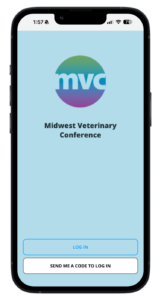
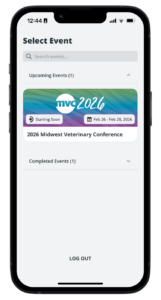
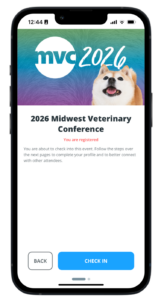
How do I log in?
|
|
|
|
|
|
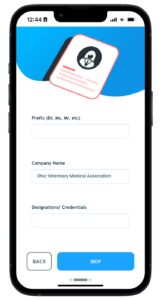
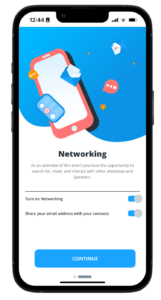
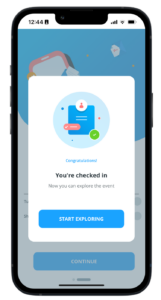
How do I set up/edit my profile?
If you did not set up your profile during the log in/check in process described above, or you would like to make changes it it later, you can do so by following these steps:
|
|
|
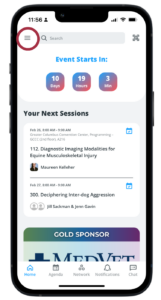
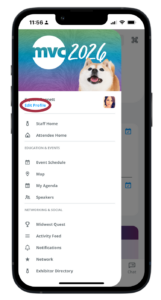
Learn more about your profile in the Networking & Privacy section below.
Sessions & CE
How do I find sessions and events?
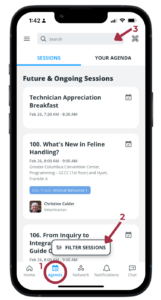
Tap the Agenda icon at the bottom of the app (1) to view future and ongoing sessions in chronological order. Tap the Filter Sessions button (2) to sort sessions by date, location, track, format, audiences, skill levels, and CE credit type. You may also search for a session by typing in the search field at the top of the screen (3).
How do I view the session/event descriptions?
Tap on a session, then swipe up on “Details” to view the description.
How do I access session notes and speaker presentations?
If a speaker has provided supplemental materials, you can find them in the mobile app by opening a session and tapping the “Docs” link. Tap on the document(s) to view in your browser or save to your device.
How can I track my CE credits in the app?
You can use the app to track your CE credits by following these steps:
1. Register for sessions by adding them to your agenda.
|
|
|
2. When a session you are enrolled in begins, you will be able to check in.
|
|
|
These two steps MUST be completed for the session to be added to your transcript and CE certificate.
Notes:
- Please note this process is not available in the web version of the app. You can add sessions to your registration/agenda, but you will not be able to mark yourself as a participant.
- You are not required to use the mobile app to track your CE credits. You will be awarded your credits even if you do not use the app, but you will have to manually track the sessions you attend.
What if I forget to check in during a session?
If you forget to check in during a session, you can do so up to seven days after the session’s end time by following the steps in the previous question.
After the seven-day grace period ends, you will need to contact OVMA to complete the process for you.
How can I access my CE certificate and transcript from the app?
Before following the steps outlined below, make sure all sessions you attended have been marked “Participate.” (See “How can I track my CE credits in the app?” above.)
|
|
| |
|
|
|
|
Is the app the only way to receive my CE Certificate?
No, you are not required to use the app to track your CE. You will still earn your credits, but you must keep your own record. A blank certificate and CE record appear in the on-site program. You can complete these items on site and have them signed by OVMA staff if your state requires verification (note: Ohio does not).
Networking & Privacy
What can I do with the networking feature?
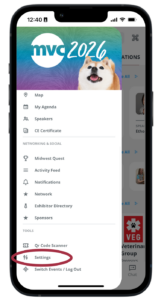
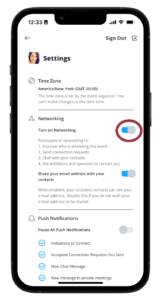
By turning on “Networking” from within the “Settings” menu, you make your profile discoverable by other attendees. This allows you to:
- send/receive connection requests to/from other attendees
- chat and set up private meetings with your connections
- ask exhibitors and sponsors to contact you
- join and participate in the Midwest Quest game
How do I network with others?
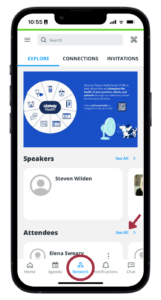
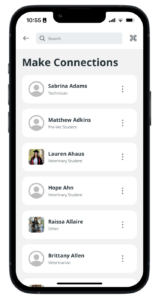
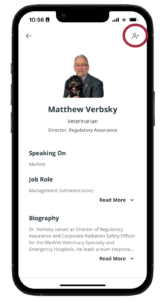
Enable Networking from the Settings menu, then tap Network at the bottom of your app to explore and/or search attendees, speakers, exhibitors and sponsors. Tap the + icon with each profile to send a connection request. Track your connections and invitations at the top of the Network screen. You can also send your connections chat messages via the Chat icon at the bottom of your app.
Who can see my profile? What information do they have access to?
By default (with the exception of speakers, sponsors and exhibitors), your profile and related information is private, and not able to be seen by other attendees/app users.
However, if you turn on “Networking” from with the “Settings” menu you can:
- Allow your profile to be discovered on the app, and discover profiles of other attendees
- Send/receive connection requests to/from other attendees
- Chat with your connections/contacts within the app
- Ask exhibitors and sponsors to contact you
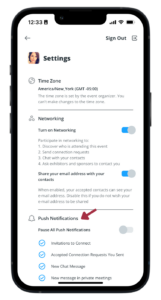
How do I opt in/out of notifications?
By default, you are opted in to receive app notifications. This allows you to receive push messages like connection invitations from other attendees, accepted connection requests, and chat messages, as well as important MVC-related updates.
To turn notifications off:
|
|
|
How do I connect with other attendees?
The MVC is a great way to expand your network! You can find people to connect with and break the ice using the mobile app… plus, by doing so, you will earn points in the Midwest Quest game.
Sending Connection Requests
Method 1: From the Network tab
|
|
|
|
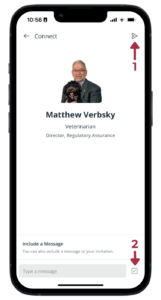
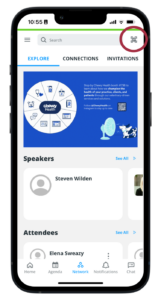
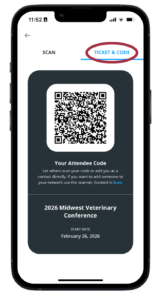
Method 2: Scan an attendee’s QR code
Using this method bypasses the connection request described below, and both attendees will be automatically connected.
|
|
Responding to Connection Requests
When another attendee sends you a connection request, you will receive a notification. Tap the notification in any of the places described below to view and accept or decline it.
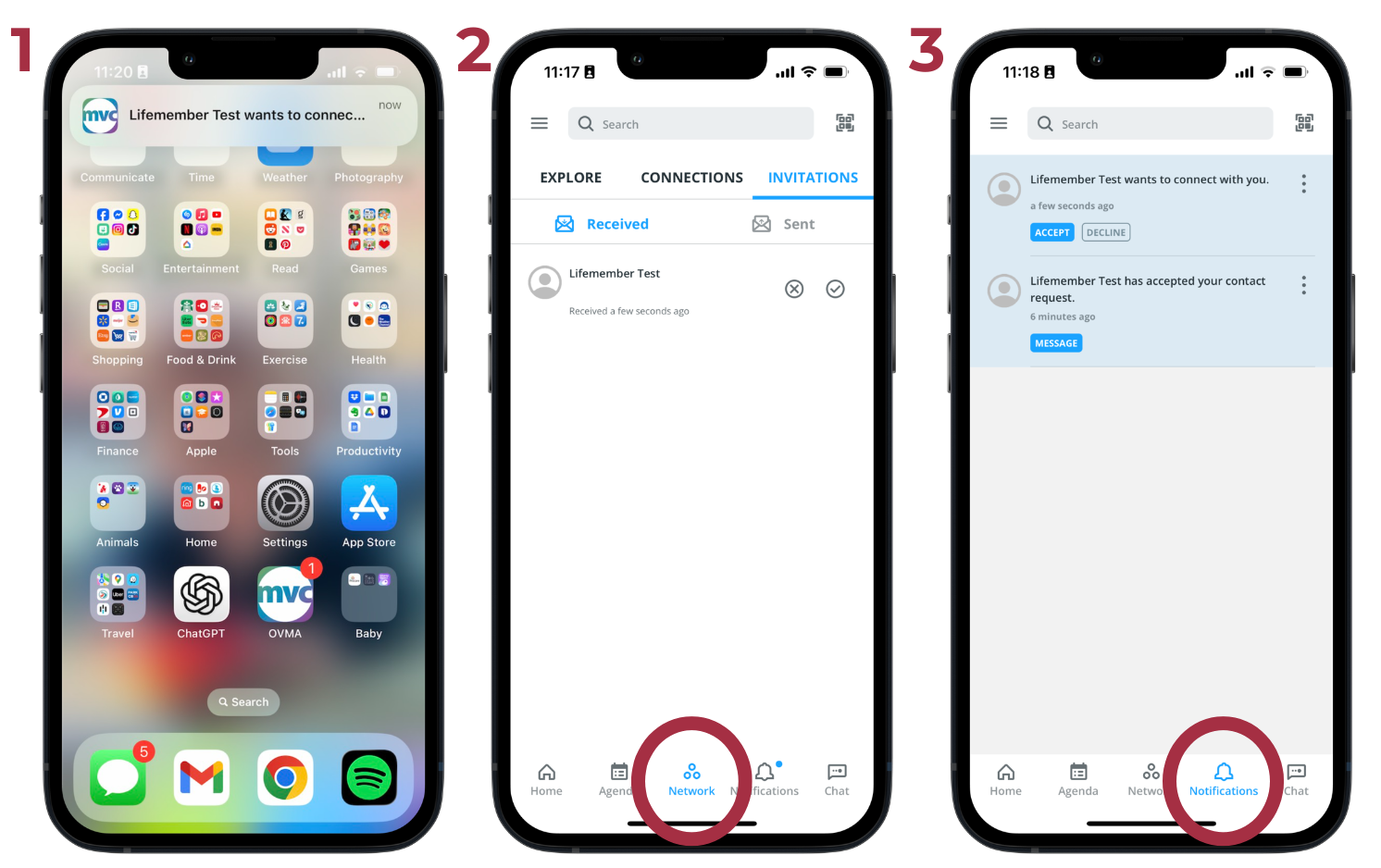
Viewing Your Connections
In the Network section (image 2 above), tap on the Connections tab to view the attendees you have connected with. From there, you can download your contacts, exchange messages, or remove anyone you no longer wish to connect with.
Midwest Quest Game
What is Midwest Quest?
Midwest Quest is the MVC’s in-app game that encourages attendees to explore all the conference has to offer. Join the game to complete challenges, earn points, and win prizes!
How do I play Midwest Quest?
1. Turn on Networking
You must opt in to networking to join the game. If you did not do so when you went through the login process, you can turn on networking features from the Settings menu:
|
|
2. Become a player
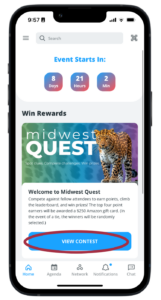
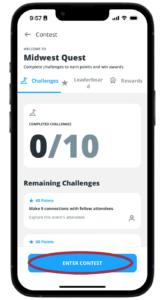
The game period runs during the live MVC. Once it opens, you’ll be able to join as a player.
|
|
3. Complete Challenges
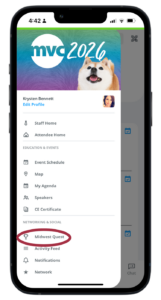
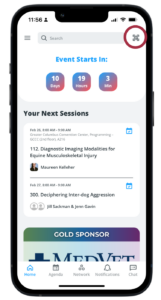
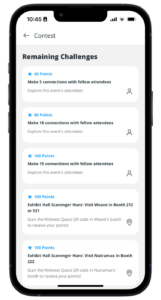
Points will be awarded automatically as you complete the challenges listed in the game. These are activities like participating in a session or special event, connecting with other attendees, and scanning Midwest Quest QR codes throughout the Exhibit Hall and other locations.
|
|
|
How do I participate in the Exhibitor Scavenger Hunt?
In the Contest section of the app, you will find a number of “Exhibit Hall Scavenger Hunt” challenges that list an exhibitor and their corresponding booth number. Find the exhibitor in the exhibit hall and use the QR Code scanner in the upper right corner of the MVC app to scan the Midwest Quest QR code at their booth to complete the challenge. Complete all Exhibitor Scavenger Hunt challenges to unlock a special badge!
I completed a challenge, but my points weren’t awarded.
This is likely because your internet connection is slow. (Convention Center wi-fi can be slow at times, depending on how many visitors are using it.) Your points will be added once internet access is restored.
Are there prizes?
Yes! Besides bragging rights and badges, the four top point earners will receive a $250 digital gift card!
In the event of a tie, winners will be randomly chosen, raffle style.
Speakers, Sponsors & Exhibitors
What can I learn about speakers?
Tap on a speaker’s name from within a session, open the Network section, or tap on “Speakers” under “Education & Events” in the side panel to learn about the MVC speakers. You can read their biography, see and go to their sessions, or tap the + icon to add them as a connection. (Note, not all speakers opt in to networking.)
What can I learn about sponsors?
Open the Network section or tap on “Sponsors” under “Networking & Social” in the side panel to view a list of our sponsors. Tap on their profile to learn more about them, locate their booth in the Exhibit Hall (if they are also an exhibitor), connect on social media, download documents and resources, and contact a representative directly within the app.
What can I learn about exhibitors?
Open the Network section or tap on “Exhibitor Directory” under “Networking & Social” in the side panel to view a list of our exhibitors. Tap on their profile to learn more about them, locate their booth in the Exhibit Hall, connect on social media, download documents and resources, and contact a representative directly within the app.
Maps & Navigation
Are there maps to help me get around MVC?
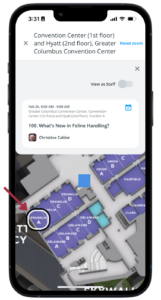
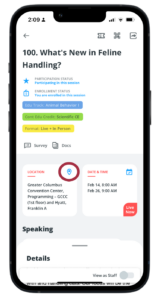
Yes! Open the upper left menu and tap “Map” in the “Education & Events” section to access interactive maps of the Exhibit Hall, the Greater Columbus Convention Center, and Hyatt Regency.
How do I find a specific session on the map?
|
|
How do I locate a specific exhibitor in the exhibit hall?
There are two ways to locate an exhibitor in the exhibit hall:
- Tap to open/learn more about an exhibitor, then tap the booth number in its listing. The exhibit hall map will open showing you exactly where they are located.
- Open the Exhibit Hall map and tap any booth number to see which exhibitor is located there
Surveys
How can I rate the sessions I attend?
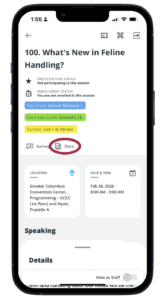
Open a session and tap the Survey icon underneath the title to rate the session and speaker and submit comments.
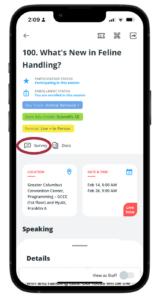
Rate at least three sessions to be entered in a drawing to win one of two $50 gift cards!
How can I take the overall MVC survey?
Tap the three horizontal lines in the top left corner of the screen, then tap on “MVC Evaluation” to complete the overall MVC survey. There will also be a response link in the post-MVC email.
Be sure to complete the survey by March 31. One respondent will win a $100 Amazon gift card!
On-Site Services
Will rabies titer testing be offered?
Yes, ARCpoint Labs of Columbus will be on site to provide this service on Friday (10:30 a.m. to 4 p.m.) and Saturday (10:30 a.m. to 1:30 p.m.)
Who should get their titers tested?
The CDC recommends the following for individuals in risk category 3 (which includes veterinary professionals):
- Either a one-time titer check after 1 year and up to 3 years following the first 2-dose vaccination, OR
- 1-dose booster between 3 weeks and 3 years following the first vaccine in the 2-dose vaccination
Read the CDC’s full Rabies Pre-exposure Prophylaxis (PrEP) guidelines »
What is the cost for titer testing?
The price is $96 for an antibody screen or $122 for endpoint testing. Payment accepted in cash, credit card, or check payable to ARCpoint Labs.
Are meals and/or beverages included?
The MVC does NOT provide meals to attendees, but it does offer complimentary beverages throughout the day.
Attendees will be able to purchase lunch right in the Exhibit Hall during the midday break on Thursday and Friday, and there are a variety of other dining establishments in or within walking distance of the convention center.
My practice is hiring or I am looking for a job. Are there any recruitment opportunities at MVC?
Community Bulletin Board
Attendees are invited to post and browse employment opportunities and for-sale listings on the bulletin board located in the Gathering Corner. Space is available on a first-come, first-serve basis.
Recruiting Opportunities
The MVC currently does not host a job fair or other recruitment events, but attendees are welcome and encouraged to use the mobile app to network with colleagues.
Meeting Space
The MVC does not provide dedicated private interview space, but attendees may set up small informal meetings amongst themselves in the common areas.
I’m a nursing mother. Are there any accommodations available for me?
There is a private room designated for nursing mothers; please refer to the On-Site Program or Mobile App for the location.
Mothers who would like to store their equipment or need access to a refrigerator during sessions may use the OVMA staff office. Stop by the Attendee Assistance counter to inquire.
Does the MVC provide on-site child care?
No, child care is not offered.
Is there a lost and found?
Attendees can drop off or look for abandoned items in the MVC Registration & Attendee Assistance area or visit the GCCC/Hyatt lost and found in the Hyatt Regency’s Union hallway.
Will I be able to check my coat and other items I don’t want to carry around all day?
Yes, a coat check is available each day in the convention center near the Exhibit Hall. Attendees may check coats and luggage as needed.
Can I purchase audio or video recordings of MVC sessions?
Due to low attendee interest, we have discontinued audio recording of sessions.
However, some sessions will be video recorded. Although they are available for individual purchase, they will be offered during the Virtual MVC for on-demand viewing for six months. View the VMVC schedule to find out which sessions will be recorded.
Will there be notes printing stations on site?
No. Please print your documents in advance and bring them with you if you would like to have a hard copy.
Registration
Need help with our new registration system? Click here for step-by-step instructions »
General Information
How and when can I register for the MVC?
Online registration is now open and will remain open through the end of the conference. All advance registrations must be submitted online; no mailed registrations will be accepted. On-site registration will also be available during the live MVC.
How much does it cost to attend? What payments do you accept?
The registration fees vary depending on your job title, your OVMA membership status, how many days you are planning to attend, and when you register. See registration fees »
Payment by credit card (Visa, MasterCard, Discover, and American Express) is required at the time of registration whether on-site or online.
Can I request an invoice or P.O.?
No, the MVC does not issue invoices or purchase orders. We are able to keep our registration prices low by encouraging our 6,000+ attendees to self-register online, thus freeing our staff to focus on high-level planning and preparation.
If your organization requires prior approval for payment, please refer to the registration fees to create your own purchase order. Note there are no service fees or taxes in addition to the posted registration rates.
What does a registration fee include?
In-Person MVC includes access to:
- all live sessions on day(s) you select
- live Exhibit Hall on day(s) you select
- workshops and labs (for an additional fee)
- special events and activities on the day(s) you attend, including the Exhibit Hall Happy Hour
- on-site program hard copy and/or mobile app
- online access to Conference proceedings
Virtual MVC Only includes six months of online access to:
- all virtual sessions
- virtual Exhibit Hall
- mobile app
- online Conference proceedings
Hybrid MVC includes access to:
- everything listed in the In-Person and Virtual Only sections above
Special Program Only includes:
- admission to and materials for selected program (pending availability)
- access to Exhibit Hall on day of lab(s)
Exhibit Hall Visitor’s Pass
- access to Exhibit Hall only, on day(s) purchased
What are the terms and conditions of registering for/attending the MVC?
Please refer to the Terms & Conditions page for the complete details.
Individual & Group Registration
What are the steps to register online?
Noticed some changes? That’s because we have a new registration system this year! If you need help navigating, follow this step-by-step guide to online registration.
Do I need to provide an email address to register online?
Yes, an email address is required to register online. Furthermore, it must be a unique email address that is not used by or shared with anyone else affiliated with OVMA (e.g., members, exhibitors, past attendees, etc).
If you do not have an email address, do not wish to share your email address, and/or share an email address with someone else, please create a new account for free on Gmail, Yahoo, Hotmail, or any other email provider. Otherwise, you will NOT be able to register.
What email address should I use to register?
OVMA Members & Prior Attendees
Use the email address you provided OVMA in the past. If you cannot remember what email we have on file, or you would like to change it, please contact us PRIOR TO beginning your registration. Please DO NOT create a new account with a different email. Members will not be able to access discounted registration rates unless they use the email address linked to their membership record.
New Attendees
You may use any email address you wish (it need not be associated with your company or organization), as long as it is not used by any other MVC attendee. This will be the address that is linked to your permanent record, so please be sure to double check spelling and use an email that you check regularly.
I share an email address with my colleagues. Can we register with the same email?
No. Each individual must have his/her own unique email address in order to register online. Please ask your hospital to provide an email address just for you, or create a free email account on Google, Yahoo, or any other service provider before registering.
Why must each person provide a unique email address in order to register?
Because it is possible for different individuals to have the same name and even the same mailing address, our system identifies registrants by their email addresses, which are typically used by only one person. This ensures the correct record is linked to the correct person and allows each registrant access to his/her own event history, membership status, and contact information.
Can I register our entire staff online at the same time?
Yes, you can. There is an option for group registrations, but the person processing the registration must be the organization’s primary contact. For complete information, please see the group registration section of this step-by-step guide.
I registered multiple people. How can I see a list of who I registered?
If you are your organization’s primary contact, you may see all attendees on your registration by following these steps:
- Log in and click on the My Account tab
- Click on My Managed Organizations
- Click on the Edit button next to the organization name
- Click on the Purchases tab
- Find the invoice related to your MVC registration and click View
Can I register on behalf of someone else?
Yes, if you are designated as your organization’s primary contact and the individual you wish to register is linked to your company. Click here for more information »
Can I join OVMA or renew my membership during registration?
Absolutely! Simply add MVC registration to your cart, then click the “OVMA Membership” tab in the left sidebar to add a membership. The registration fees will automatically update to the member price.
If you’re not sure which member category you’re eligible for, visit the OVMA website for more information. Please note, membership is only available to veterinarians and veterinary students.
When does online registration close?
It doesn’t! Online registration will be open throughout the live MVC, so you can register online before you leave home and proceed directly to the badge printing station upon arrival.
Can I register by mail?
OVMA no longer accepts hard copy registration forms via postal mail or fax. All registrations must be submitted online.
Can students attend the MVC? Do I need to show my student ID?
Yes, veterinary, technician, and pre-veterinary students are welcome to attend at a special reduced rate. You are not required to provide proof of your student status.
I am an OVMA Student Member. Am I automatically registered for the MVC?
No. While you do receive free registration as a student member, you need to self-register online in advance or on site in person.
Remember, you MUST use the email address you provided OVMA when you joined; otherwise, you will not be able to access complimentary member registration.
Signing up for Sessions & Labs
Am I required to register for sessions and/or labs in advance?
Registering for Sessions
You will not be able to add sessions to your schedule during registration. However, you can build your schedule after your registration is complete. Attendees are strongly encouraged to select the sessions they plan to attend, for the following reasons:
- Allows OVMA to assign rooms and seating to accommodate all attendees.
- Ensures you have a record for future reference and if you are audited by the state licensing board in the future (your schedule will be printed on your CE certificate and included in your confirmation email).
- Automatically populates your schedule in the MVC mobile app.
You can edit your selections if you change your mind by logging into your online account (instructions will be in your confirmation email). However, if you wish to attend hands-on labs and/or special events, you must register for these in advance.
Registering for Labs
Advance registration is required for hands-on labs and workshops. Registration for these special programs closes on Jan. 30 (or earlier, if they sell out). You can select the programs you wish to attend during online registration.
Can I attend any session or lab I want, regardless of my education and/or current position?
Each session includes a target audience and content level, which are provided by our speakers to help registrants select courses that are best suited for their position and knowledge level. CE sessions are not restricted to specific individual types; any attendee may sign up for any session, regardless of these suggestions.
However, due to the interactive nature of hands-on labs and workshops, these programs are designed for specific attendee types, based on the training and education those individuals receive, and therefore may be restricted to specific audiences.
Please read the session descriptions carefully to determine if the subject matter is appropriate; if so, you may contact OVMA to request an override. Keep in mind, however, that the cancellation and refund policy applies even if you change your mind or find that the material does not meet your level of expertise.
How do I select which sessions and/or labs I plan to attend?
On the Sessions page of online registration, click the “Select” button next to any hands-on labs and/or special events you would like to sign up for.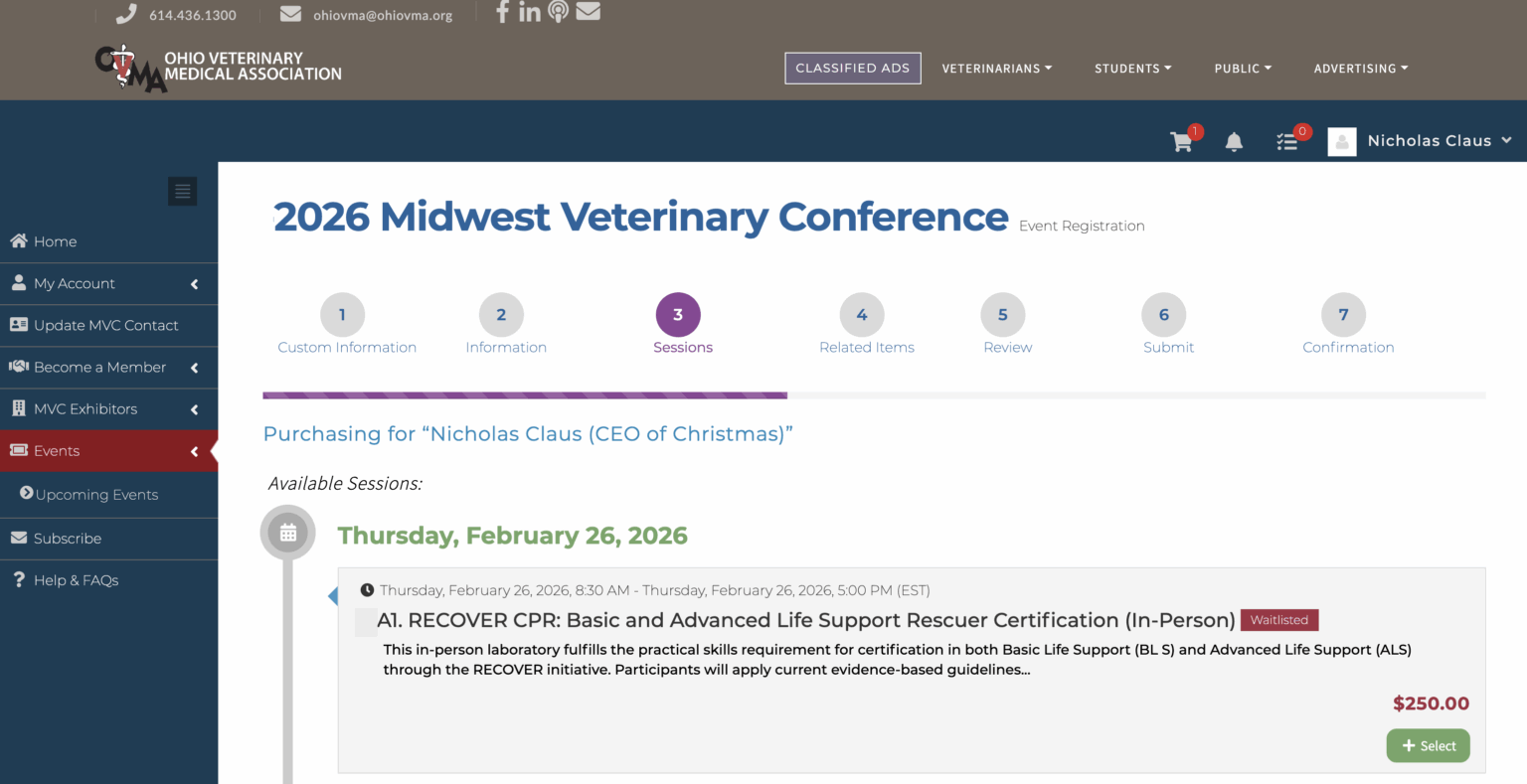
You can add sessions after registration by following these steps:
- Click here, then click the Sign In button in the top right corner
- Log in using your email and the password you set up before registration*
- After completing the check-in process, click the “Sessions” tab in the left sidebar
- Click on the session you wish to attend, then click the green bookmark icon next to the title to add it to your registration
- Repeat the process as needed to build your schedule
*Did someone register on your behalf? Follow steps 1 and 2 above, then click the reset password link on the login page. Follow the prompts to set your password and return to these instructions.
Note: Clicking the calendar icon does NOT register you for the session. This feature allows you to add the session to your device’s calendar as an event.
What should I know about registering for hands-on labs and workshops?
Additional Fees. Hands-on labs and workshops require an additional fee. Please note that, because these prices are fixed, there is no member or early registration discount.
Advance Registration. All labs and workshops require advance registration by Jan. 30.
Capacities, Availability & Waitlists. Participation in these programs is limited and is awarded on a first-come, first-serve basis; as such, we advise you to sign up as early as possible. If your desired program is full, you can place yourself on the waitlist during registration.
You can find out whether a program has reached capacity by checking the Program Changes & Updates page prior to beginning your registration.
If a program is full, you can opt to be added to the waitlist during registration. You will be contacted via email if/when a spot opens up.
Terms & Conditions. When you sign up for a lab, you acknowledge that understand and agree to the following:
- Some labs involve working with live animals, cadavers, specimens, equipment and other unique learning materials.
- As such, attendees may be at risk of injury or disease in the same manner as a veterinary professional would be exposed to these risks in carrying out the same or similar procedures in a clinical setting.
- Registrants release OVMA, instructors, and other participants from any damages/injuries that may occur during or as a result of participation in the program.
After I register, how can I view the labs and events I selected during registration?
- Log in and click on My Account > My Profile.
- Click on the Purchases tab, then click on Events.
- Click the Details button next to the 2026 MVC.
- Any labs or events you registered for will be shown on this page.
I’ve already registered, but I want to add a lab to my registration.
- Log in and click on My Account > My Profile.
- Click on the Purchases tab, then click on Events.
- Click the Details button next to the 2026 MVC.
- Click the Add Session + button and follow the prompts.
Can I sign up for a lab or workshop only?
Yes. Please contact OVMA directly to register for a lab only.
Please note, you will not be permitted to attend any concurrent sessions (live or virtual), but you will have access to the Exhibit Hall.
Can I register for sessions and/or labs on site?
If you register on site, you will not be able to select your sessions during the registration process. However, you can add them to your schedule using the MVC Mobile App or by following the instructions outlined above.
Hands-on labs and workshops require advance registration by Jan. 30; therefore, on-site registration for these programs is not available.
Can students attend any session and/or participate in hands-on labs?
Students are welcome to attend any session they wish. However, due to the interactive nature of hands-on labs and workshops, these programs are designed for specific attendee types, based on the training and education those individuals receive, and therefore may be restricted to specific audiences.
Please read the lab descriptions carefully to determine if the subject matter is appropriate; if so, you may contact OVMA to request an override. Keep in mind, however, that the cancellation and refund policy applies even if you change your mind or find that the material does not meet your level of expertise.
Registration Confirmations
Will I receive a confirmation email?
All attendees will receive a confirmation email once their registration is processed. To ensure you receive it, please double check your email address for typos.
If you do not receive a confirmation email, first check your junk mail folder. If you don’t find anything there, please contact us to confirm your email address, then click here to view the confirmation email online.
When will I get my confirmation packet and name badge?
Confirmation packets and badges WILL NOT be mailed in advance. All attendees should pick up their badges on site.
I registered multiple people from our office. How will we receive confirmation?
Each person will receive an individual confirmation by e-mail.
How do I get a payment receipt?
Whether you register online or in-person, you will receive a payment receipt via email. This will be a separate email from your confirmation.
Changes, Cancellations & Transfers
I’ve already submitted my registration. How do I add a lab or special event?
- Log in and click on My Account > My Profile.
- Click on the Purchases tab, then click on Events.
- Click the Details button next to the 2026 MVC.
- Click the Add Session button and follow the prompts.
Can I modify my registration in the mobile app?
No, you cannot use the mobile app to change your registration.
What if I have to cancel my registration?
When personal or professional circumstances prevent a pre-registered individual from attending the Midwest Veterinary Conference, the OVMA will refund a portion of registration fees under certain circumstances. For complete details, please review the Terms & Conditions.
You may self-cancel via the online registration system by following the instructions below, or you may contact us.
- Log in and click on My Account > My Profile.
- Click on the Purchases tab, then click on Events.
- Click the Details button next to the 2026 MVC.
- Click Cancel Registration and follow the prompts.
Can I transfer my registration to someone else?
Yes, if you are no longer able to attend, your registration may be transferred to another person. For more information, please see the Cancellations & Transfers page.
How can I upgrade my in-person only registration to include access to the Virtual MVC?
You may upgrade your registration any time by following the steps below.
- Click here and log in to your existing registrant account.
- Click on “Events” in the sidebar, then “Upcoming Events.”
- Click the “Register to Attend” button in the “2026 Virtual Midwest Veterinary Conference: UPGRADE” event (or click here to go directly to the registration).
- Follow the prompts to check out and submit your payment information.
You will receive an email confirming your registration was successfully processed.
Virtual MVC
General Information
What is the Virtual Midwest Veterinary Conference?
The Virtual MVC (VMVC) is the online, on-demand portion of the conference that allows you to earn CE at your own pace, from the comfort of your home or anywhere you have an internet connection. A select number of live sessions (about one-third of the content) will be recorded on site for viewing during the VMVC.
Is the VMVC streamed live?
To ensure high-quality video/audio, virtual sessions are NOT presented live. They will be available for on-demand viewing when the VMVC launches.
Will I be able to watch any and all sessions?
Not all sessions offered at the in-person MVC will be available at the Virtual MVC. A select number of sessions (about one-third of the content) will be recorded on site for the VMVC. Of those, you are welcome to watch whatever you like!
When will I have access to the session recordings?
The VMVC will open March 10 and be available for six months, until Aug. 31. During that time, participants have unlimited access to session recordings and may watch and rewatch at their leisure.
Can I download the videos to watch later?
No, participants will not be able to download the session videos.
VMVC Registration
How do I register for the Virtual MVC?
You can register online beginning Nov. 18 (subject to change) through the end of the VMVC. Click the “Register Now” button at the top of the page to get started.
Can I request an invoice or P.O.?
No, the MVC does not issue invoices or purchase orders. We are able to keep our registration prices low by encouraging our 6,000+ attendees to self-register online, thus freeing our staff to focus on high-level planning and preparation.
If your organization requires prior approval for payment, please refer to the registration fees to create your own purchase order. Note there are no service fees or taxes in addition to the posted registration rates.
Can I also register for the live, in-person MVC?
Yes! To register for both the in-person and virtual MVC, simply select the Hybrid option during online registration.
Do I need an email address to register for and attend the Virtual MVC?
Yes. Not only is this your primary identifier to ensure all your information (contact details, past registrations, payments, membership, etc.) is linked to you, but you will also use it to log in to the MVC Virtual Platform. Please DO NOT unsubscribe from/opt out of emails from OVMA/MVC, as this will prevent you from receiving notifications when the virtual conference goes live.
What does the registration fee include?
Virtual attendees have access to:
- all recorded sessions for six months
- online conference proceedings (speaker presentations and notes, if provided)
- the Virtual Exhibit Hall
- the MVC mobile app
Do I need to sign up for virtual sessions during registration?
No, you cannot select your sessions during registration. Optionally, this can be done after your registration is complete; see “Virtual CE” section below.
I am deaf and need captions in order to participate. How do I request this accommodation?
The MVC provides auto-captioning through Vimeo. If you need further accommodations, please complete the ADA Special Accommodations section requesting this service AND contact us with a list of sessions you wish to be transcribed for you.
Can I share my VMVC registration with my colleagues?
No, multiple individuals may not share a single registration. Doing so is a violation of the MVC’s Terms & Conditions.
Aside from this, keep in mind that your access information is unique to you and can only be used to log in on one device at a time. Furthermore, the virtual platform tracks your usage, so allowing someone else to view videos from your account will alter your own CE record.
Be advised, only paid registrants can claim CE verification for license renewal purposes; OVMA will NOT verify CE for anyone who is not registered.
Virtual CE
What sessions will I be able to watch during the Virtual MVC?
For a complete list of sessions that will be recorded, click here.
Please note, this list is subject to change. All changes will be posted on the above web page as soon as they are confirmed, so you can be assured you are viewing the most up-to-date list.
Do I need to register for sessions in advance?
No, you do not need to register for virtual sessions or add them to your schedule.
How can I add virtual sessions to my schedule?
If you would like to build your schedule so you don’t forget which sessions to watch, you can follow the steps below:
- Click here to access the virtual event
- Click the Sign In button in the top right corner
- Log in using your email and the password you set up before registration
- After completing the check-in process, click the “Sessions” tab in the left sidebar
- Click on the session you wish to attend, then click the green bookmark icon next to the title to add it to your registration
- Repeat the process as needed to build your schedule
Are there any restrictions on what sessions/content I can view?
No, all recorded sessions will be available to virtual attendees. For a complete list of sessions that will be recorded, click here.
How many hours of continuing education can I obtain by attending the Virtual MVC?
The amount you may earn by participating in the Virtual MVC varies by state. In Ohio, veterinarians can earn 18 of their 30 hours online, and technicians may earn 6 of their 10. If you are licensed outside of Ohio, please check with your state’s licensing board to determine how many hours of online CE you can use toward license renewal and whether presentations need to be viewed live rather than pre-recorded.
How do I get CE credit for watching VMVC sessions?
You must complete the video before accruing a CE credit. After watching, 1 CE credit will be added to your transcript/certificate.
Please note, the following will prevent your CE credit from being awarded:
- fast forwarding/skipping ahead to the end of the video
- having the session open in multiple tabs (this can interfere with the tracking)
A session I watched was not added to my transcript/certificate.
Please note, the following will prevent your CE credit from being awarded:
- fast forwarding/skipping ahead to the end of the video
- having the session open in multiple tabs (this can interfere with the tracking)
If you have watched the video in its entirety, and it is still not being added to your certificate, please contact us for assistance.
I’m an Ohio veterinarian. Can I use the VMVC for my 2026 renewal?
In Ohio, DVM renewal applications are due on March 1. Because the VMVC does not go live until March 10, you will NOT be able to use these sessions for your 2026 renewal, but you can use them for your 2028 renewal.
You may, however, use the sessions you attended during the live MVC for your 2026 renewal.
For non-Ohio veterinarians, please check with your state’s licensing board.
How do I get a CE certificate and/or transcript of the sessions I watched?
After you have watched all your sessions, follow the steps below to generate your certificate.
- Log in to your account.
- Click on the Events tile.
- Click on the event for which you would like to generate your certificate.
- Click on “CE Certificate” in the left sidebar.
- Click the “Request Certificate of Attendance” button.
- Select which certificates you would like to generate, then click the confirmation button.
- When the success message appears, click “View Certificate(s).”
- Click on each item, then click “Generate Certificate.”
- The document will automatically download to your computer.
If I watch additional videos, how can I update my certificate and transcript?
While logged in to the attendee platform:
- Click the “CE Certificate” tab in the left sidebar.
- Click on the certificate or transcript box.
- Click “Regenerate certificate.”
- Check the box next to the new sessions to add them to your certificate.
- Follow the prompts to regenerate and download your certificate, then repeat the process with the other document as needed.
Can I share my VMVC access with my colleagues?
No, multiple individuals may not share a single registration. Doing so is a violation of the MVC’s Terms & Conditions.
Aside from this, keep in mind that your access information is unique to you and can only be used to log in on one device at a time. Furthermore, the virtual platform tracks your usage, so allowing someone else to view videos from your account will alter your own CE record.
Be advised, only paid registrants can claim CE verification for license renewal purposes; OVMA will NOT verify CE for anyone who is not registered.
VMVC Viewing Platform
How do I log in to the Virtual MVC platform?
Click here to log in to the website using the email address and password linked to your registration.
Where do I find and watch session videos?
After logging in (as described in the previous question):
- Click on the “Events” tile.
- Click on the “2026 Virtual Midwest Veterinary Conference” tile.
- Click on “Library” in the left sidebar.
- Scroll through the list, type keywords in the search bar, or use the filter to find sessions.
- Open a session and click the green bookmark icon.
- The recording will appear beneath the session title; click the “Watch Now” button to view it.
How do I find specific tracks?
- Click on the “Library” tab in the left sidebar.
- Click the “Add Filter” drop down.
- Click “Edu Track,” then click the track(s) you want to search for.
- Click the “Add” button.
- All sessions that meet your criteria will be shown.
- To reset the filter, click the X icon next to the track name.
How do I get CE credit for watching VMVC sessions?
You must complete the video before accruing a CE credit. After watching, 1 CE credit will be added to your transcript/certificate.
Please note, the following will prevent your CE credit from being awarded:
- fast forwarding/skipping ahead to the end of the video
- having the session open in multiple tabs (this can interfere with the tracking)
A session I watched was not added to my transcript/certificate.
Please note, the following will prevent your CE credit from being awarded:
- fast forwarding/skipping ahead to the end of the video
- having the session open in multiple tabs (this can interfere with the tracking)
If you have watched the video in its entirety, and it is still not being added to your certificate, please contact us for assistance.
How do I find what videos I have watched?
You can track what videos you have watched via the “My Attendance” tab.
Volunteer Opportunities
What volunteer opportunities are available at the MVC?
The MVC staff needs volunteers to serve as session moderators. Learn more about moderating »
Who can become a volunteer?
Any MVC attendee can volunteer as a Session Moderator. Please note, you MUST be registered to attend on the day(s) you volunteer. In other words, it’s not a way to attend for free (sorry!).
What is a Session Moderator, and what do they do?
A Session Moderator is essentially a Speaker’s assistant. They introduce the speakers of their selected sessions using an introduction prepared by the MVC staff and, in the event of a problem, assist in locating appropriate staff to resolve A/V equipment or room issues.
What is the time commitment of a Session Moderator?
Volunteers usually moderate for a morning (8 to 11:30 a.m.) or afternoon block of sessions (1:30 to 5 p.m.), but we will gladly accept any level of commitment!
What are the benefits of volunteering as a Session Moderator?
In addition to the networking possibilities, moderators are invited to a complimentary lunch with their speakers on the days they volunteer. As a bonus, all volunteers who sign up by Feb. 13 will be entered in a raffle!
How do I become an MVC Session Moderator?
You may sign up online after completing your MVC registration. A link to the online volunteer sign-up page will be included in your MVC registration confirmation email.
Please note, you will need a valid email address and be a registered attendee in order to volunteer.
Where can I find the moderator kit and speaker introductions?
The moderator kit, including speaker introductions, will be available two weeks prior to the Conference; we will contact you via email once it is available. There will also be hard copies available on site in the session rooms.